Help centre
Answers to the questions that come up most, plus troubleshooting for graphics and saves.
Browse the FAQTutorials
Walkthroughs for the parts of TickWords that reward a bit of explanation. These are the same tutorials the game shows in its Tutorials tab.
Tutorials walk through one task from beginning to end. For a short answer to a specific problem, the FAQ and troubleshooting notes are the better place to look.
The main menu is organised into tabs. Play is about the current crossword and settings. Create builds new crosswords. My Crosswords stores the crosswords you created. Library holds the premade crosswords that ship with the game, and Tutorials is where you go for help.
All game progress is automatically saved, so there is no save game button. When you open the software, your last puzzle is loaded where you left off.
To get started we recommend trying a pre-made crossword in the Library. You can either load a single crossword or play a “Collection” of crosswords.
A collection of crosswords shows an icon (left) and a crossword shows a thumbnail of the crossword (right). 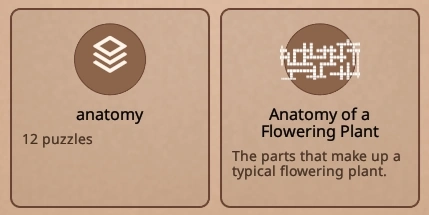
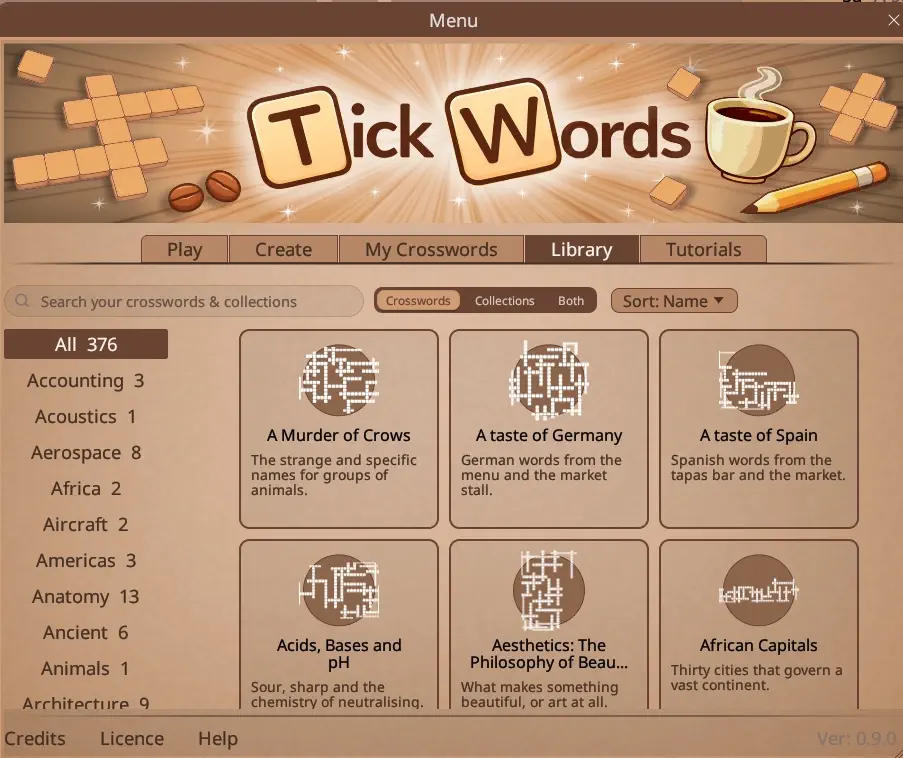
Navigating the library view: - The switch at the top filters the view to crosswords, collections, or both. - The list down the left filters by subject. - The search box finds crosswords that have the selected text. - The results will mention if that was found in the title, clues, or answers. - The sort can be changed to date, to see the ones you worked on most recently at the top.
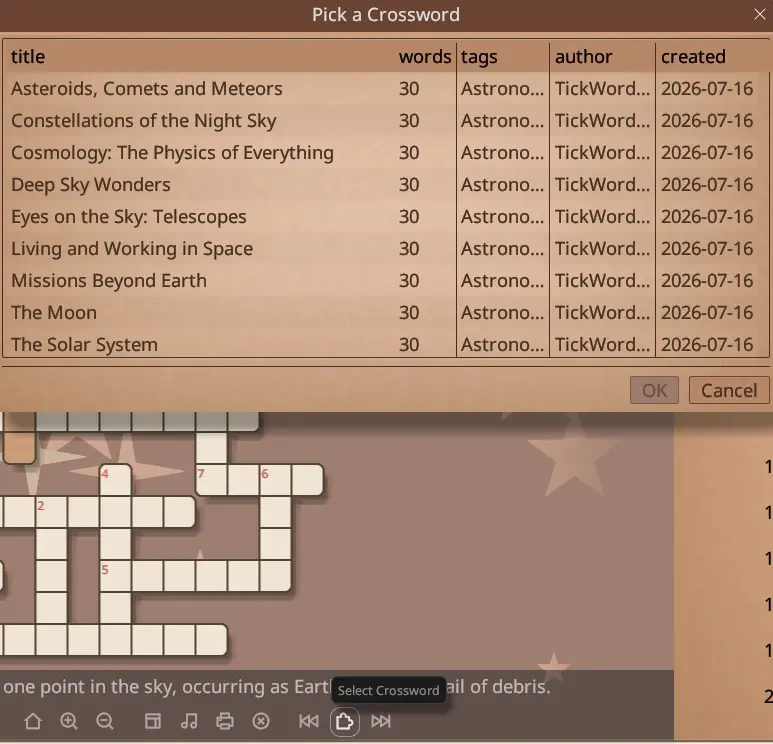
A collection is a set of related crosswords played as a group. While playing a collection, the Select Crossword button on the toolbar lets you select which crossword you are playing. The buttons either side let you jog between them.
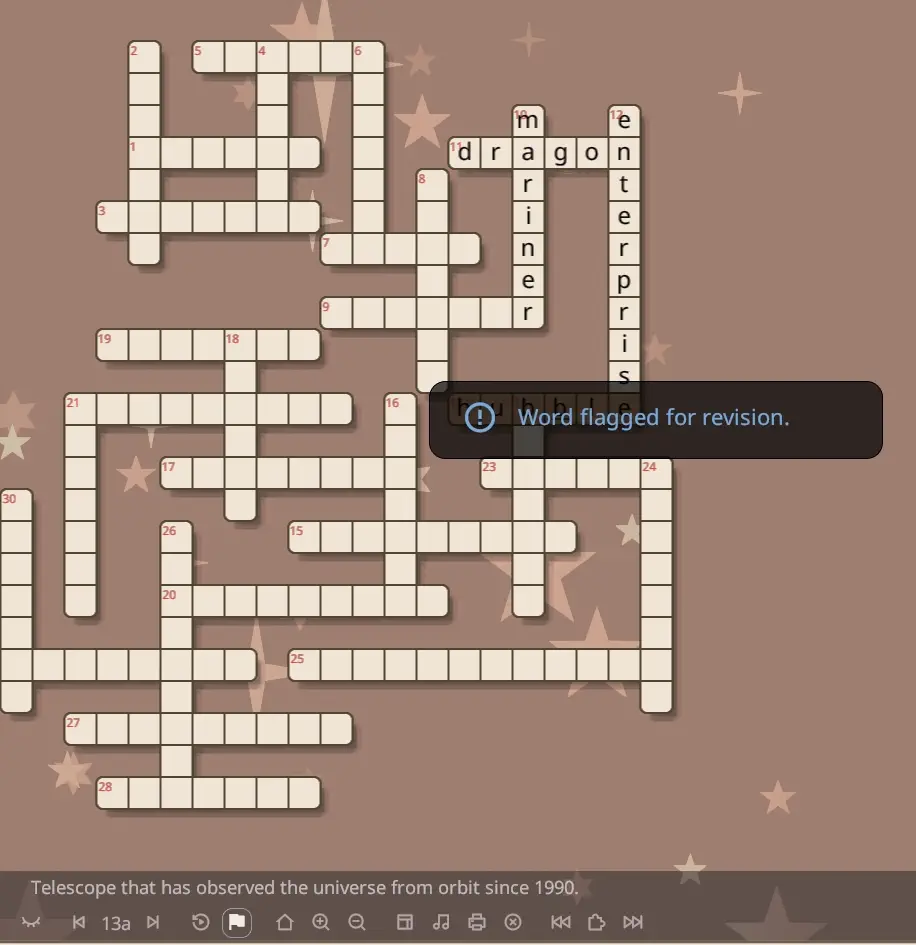
Click a square and type to fill in a word. The clue for the selected word is shown at the bottom of the screen, and the full clue list sits in the sidebar. The toolbar along the bottom holds the common actions, and each button explains itself when you hover over it.
Words you find difficult can be flagged with the flag button on the toolbar. Flagged words are remembered and can be built into Revision Crosswords later.
You can use a hint to get a free letter. Press F1 or use the hint button on the toolbar.
The score is out of five stars: - If you use more than one hint on a single word, you lose a star. - If you spell a word wrong twice, you lose a star. - You lose at most one star per word, regardless of how many hints/errors used.
If you are doing a crossword, just for fun, and don’t want your hints/errors flagged for later revision, you can switch between fun and learning modes on the toolbar.

For those without a mouse, or who prefer to use a keyboard, some of the toolbar options have shortcuts:
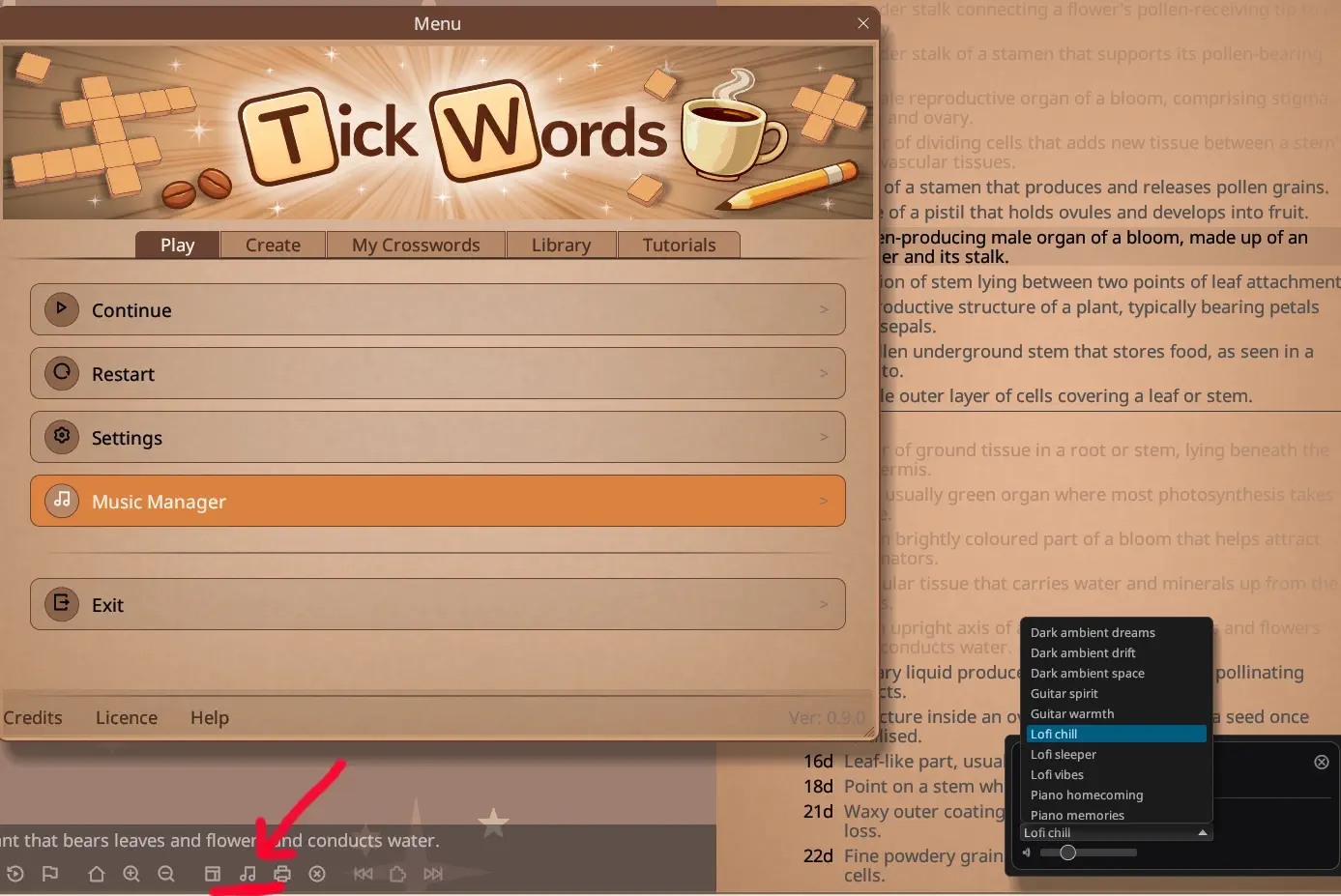
The game comes with six hours of study music, divided into genres and albums. A music player can be toggled, which lets you change the volume, shuffle the tracks, set repeats etc.
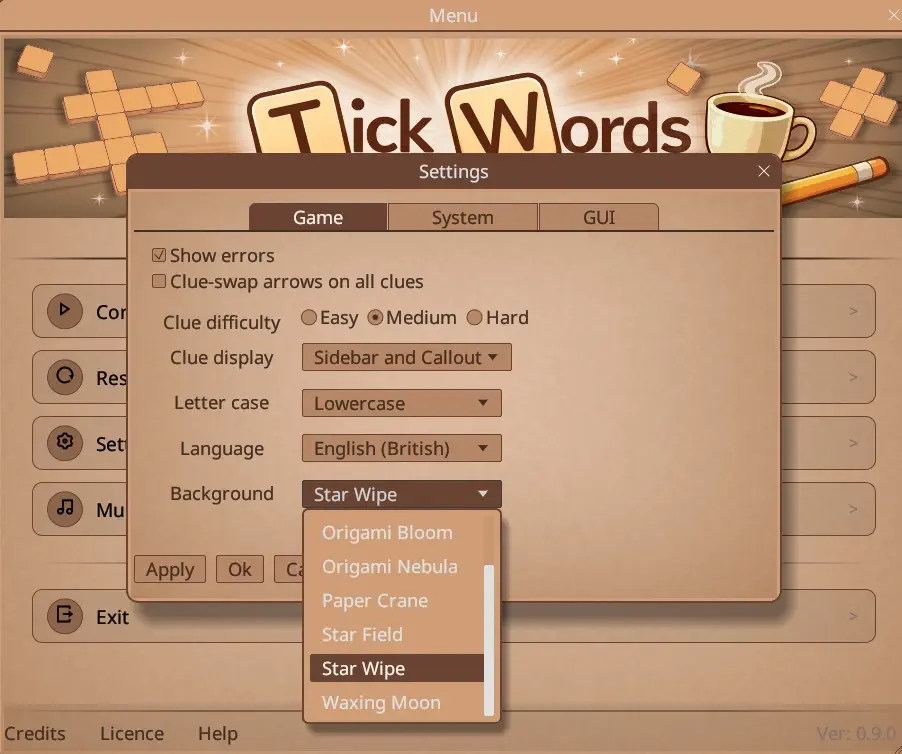
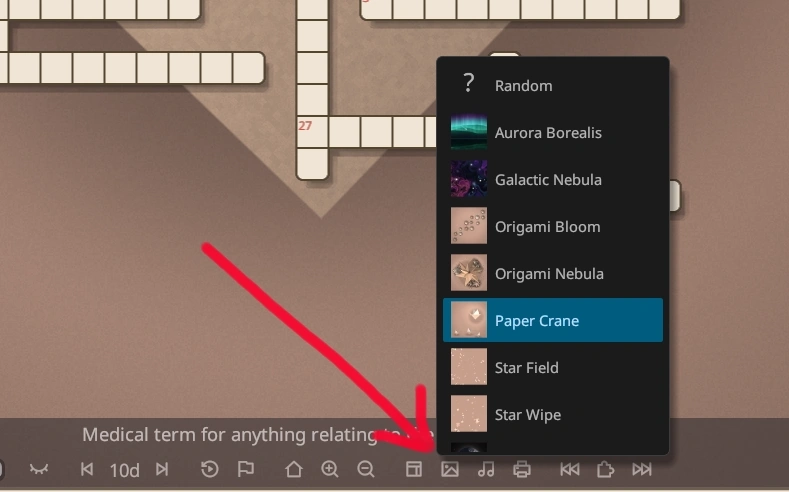
The backgrounds are animated effects that respond to your progress in the game. To change the background behind your crossword, open Settings, or use the
The Create tab of the main menu offers five ways to make a crossword.
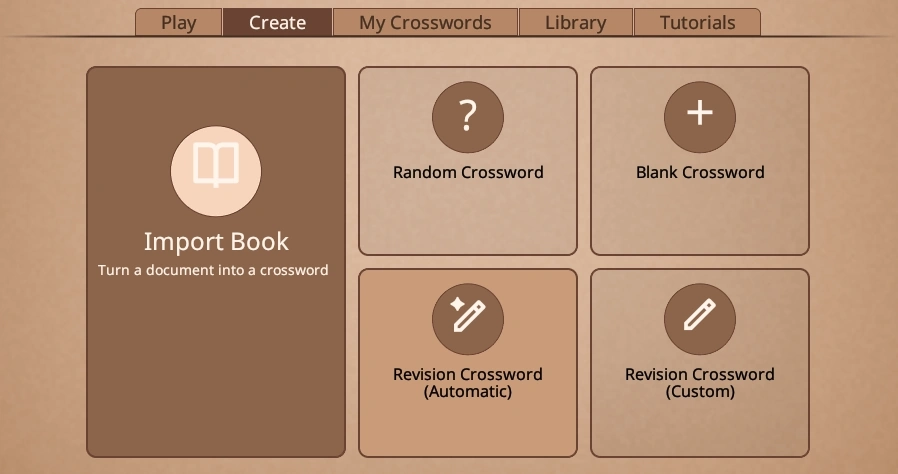
The options are:
Import Book turns a document into crosswords. It is the most powerful option, and has its own tutorial, see: Importing a Book.
Random Crossword builds a puzzle from topics you pick. See the Random Crosswords tutorial.
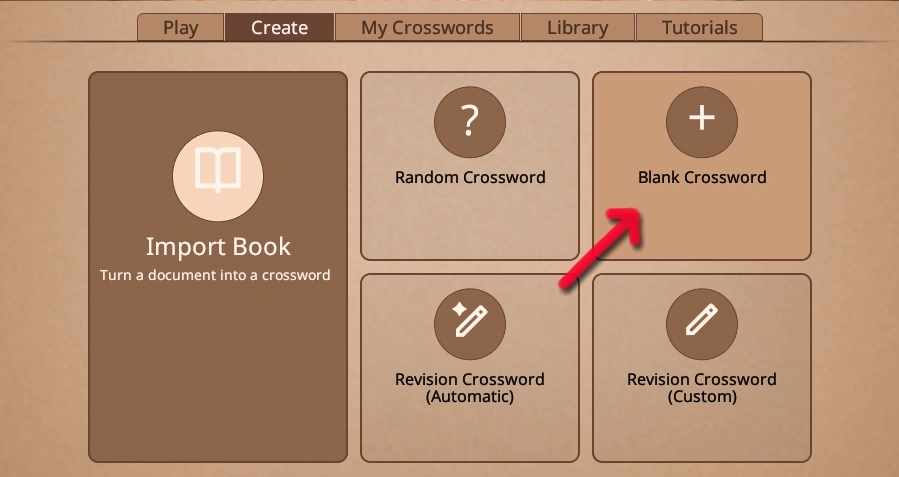
Blank Crossword starts an empty crossword for you to fill with your own words and clues.
Revision Crossword (Automatic) and Revision Crossword (Custom) revisit words you have already played. These options only become useful once you have played a few crosswords. In addition to simple revision lists, there is an option to use spaced repetition to select the words you should revisit.
Everything you create is saved to the My Crosswords tab, where it can be played, edited, printed or exported.
Random crosswords are by far the quickest and easiest way to a fresh puzzle. Choose Random Crossword from the Create tab of the main menu.
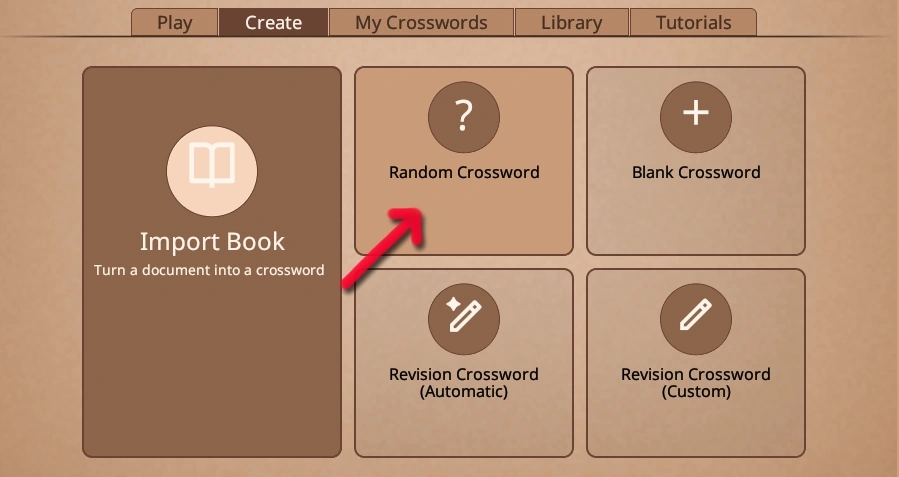
Three basic steps: - Press the plus button to set the topics - Use sliders to set difficulty - Set the number of words
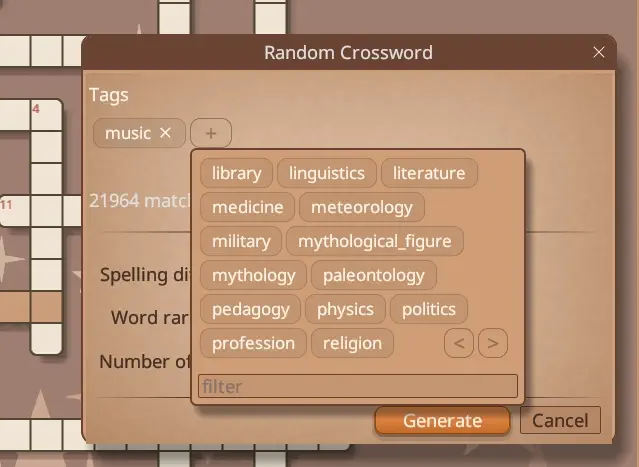
When you are happy, press Generate. It may take 10 to 15 seconds,
it has to search a very large database for matching records.
Creating an empty crossword uses the same table based form used elsewhere to edit and manage crosswords.
Select Blank Crossword.
You will see a screen with a table of the answers and clues in the crossword.
Selecting “Add Words” is a good way to start adding answers.
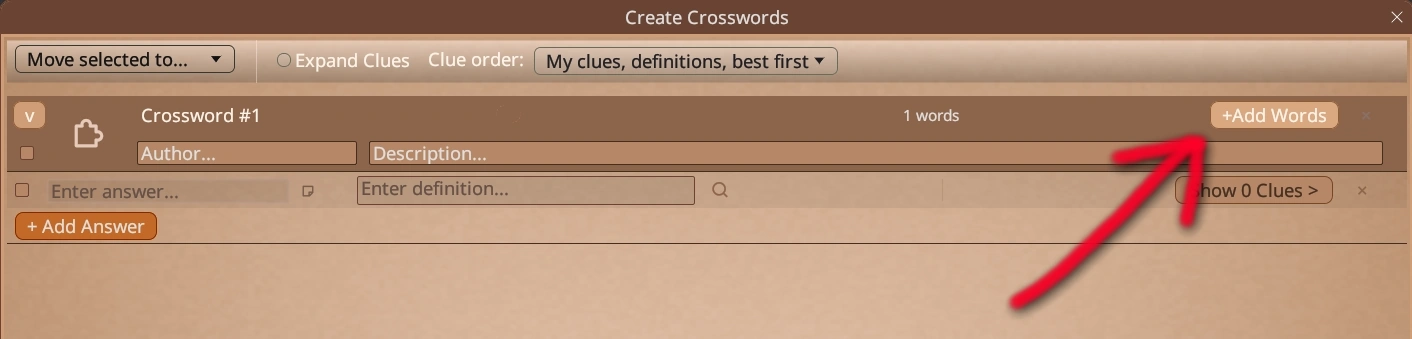
This brings up a dialog to search the clue database.
You can add words to a list of words you want to add at once. 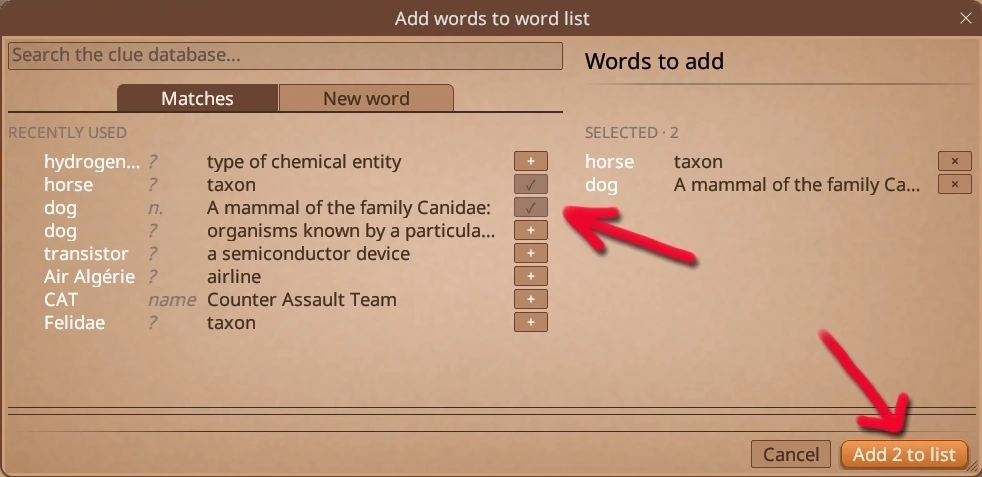
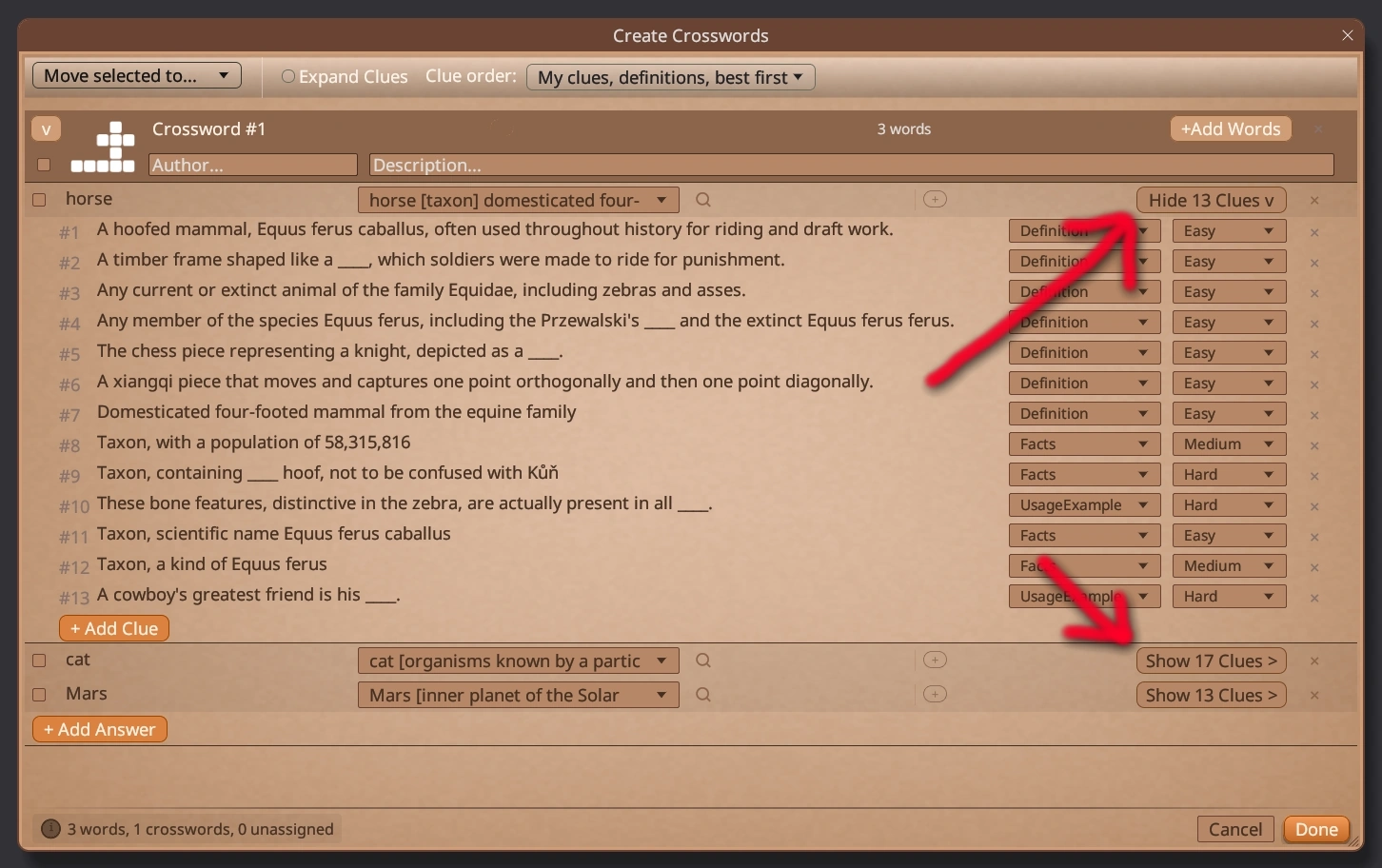
Answers show as one line per record.
The clues are hidden. To show the clues press this button.
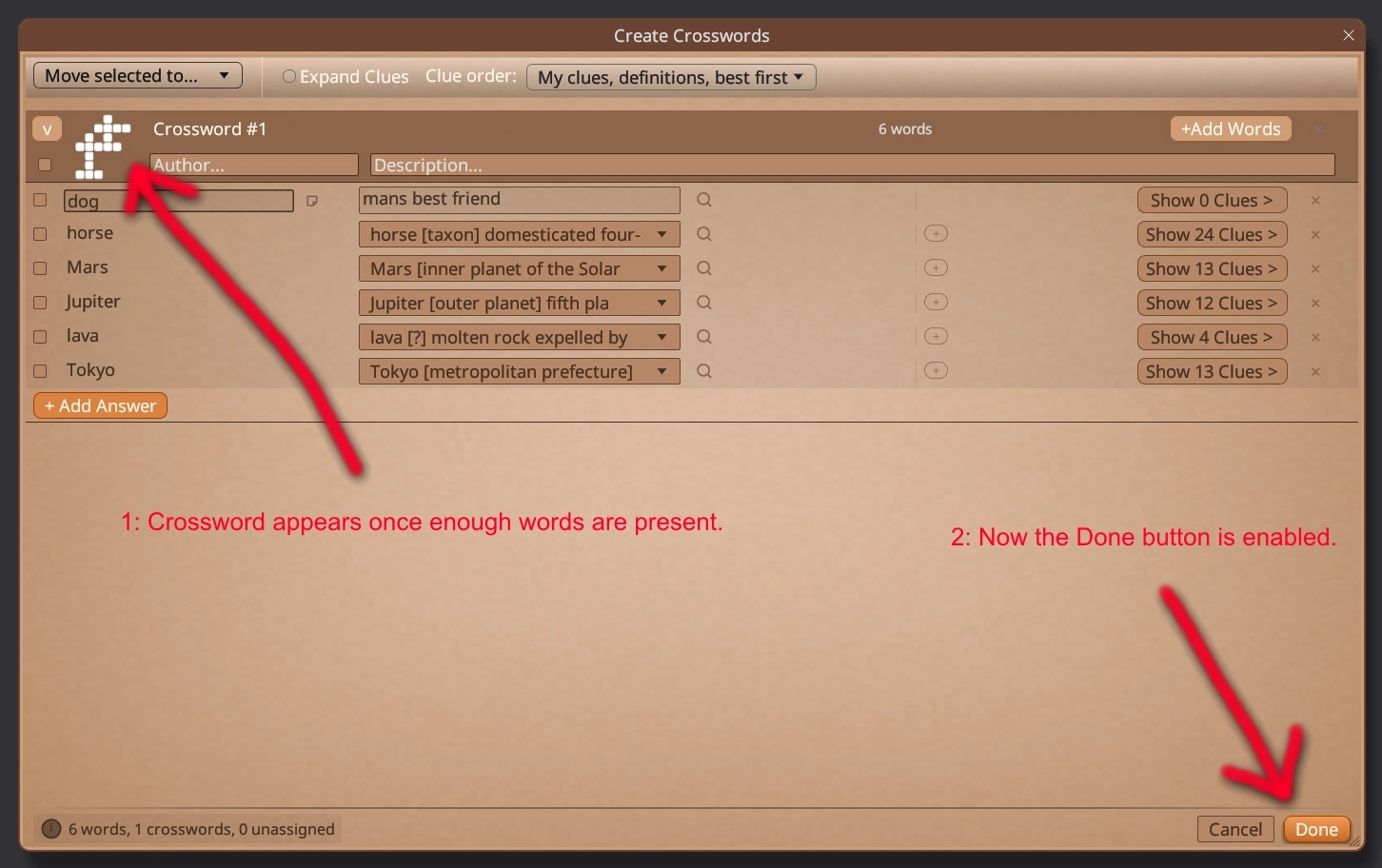
When enough words have been added, a preview of the crossword appears. You can click on this preview to see a larger version. Once you are happy press Done. You will be asked if you want to add the crossword to a collection, then the crossword will appear on the game screen.
With this exercise complete, you are ready to move on and discover more features
as you get more familiar with the software.
Import Book turns your own study material into crosswords. It reads the common document
formats, including PDF, EPUB, Word documents and plain text.
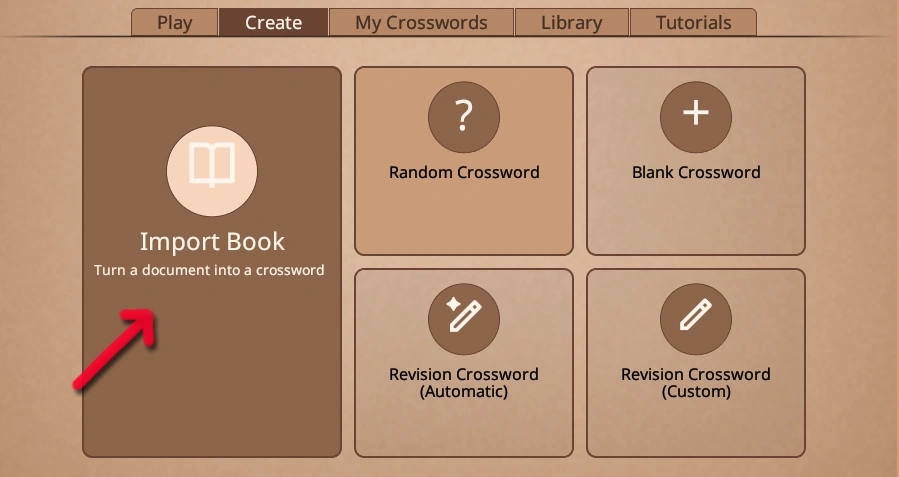
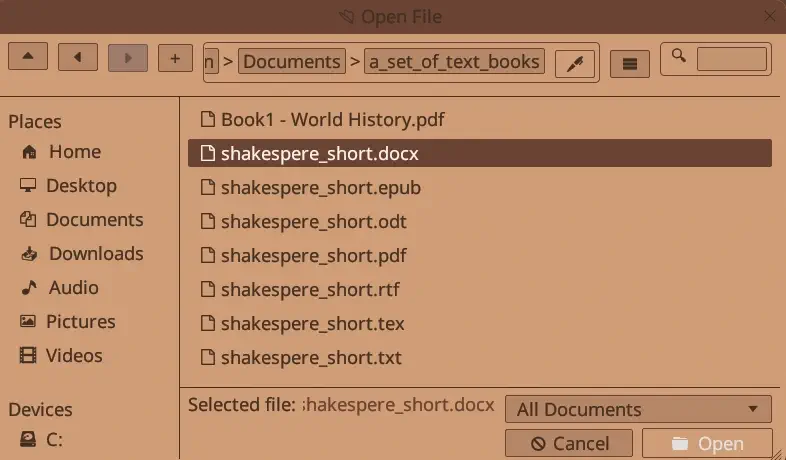
You will then see a file browser that lets you import from the supported formats: - PDF .pdf
- Word .docx (legacy .doc not supported) - HTML .html .htm - Markdown .md .markdown - RTF .rtf
- OpenDocument .odt - EPUB .epub - LaTeX .tex .latex - Plain text .txt
.pdf .docx .epub .html .md .rtf .odt .tex .latex .txt - OpenDocument - EPUB .epub - LaTeX .tex .latex - Plain text .txt
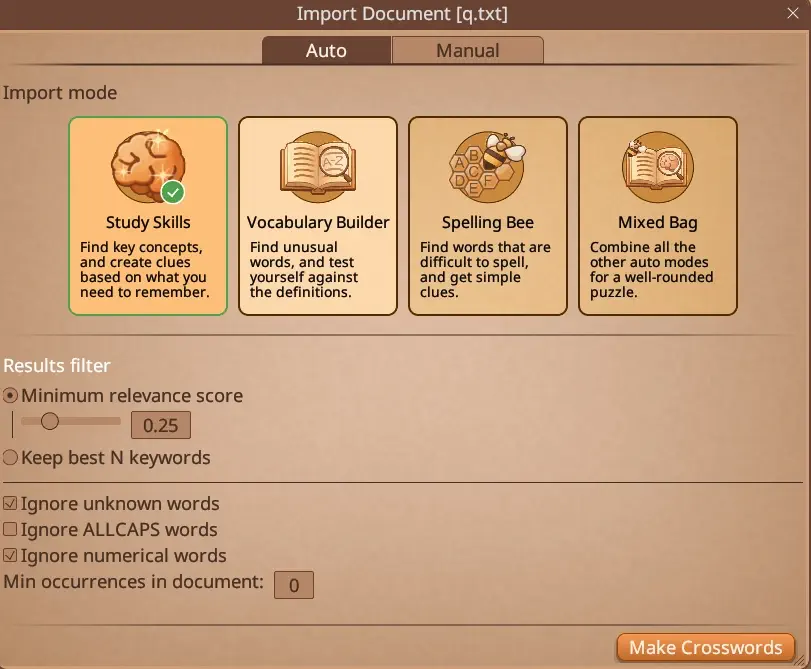
Auto mode is the easiest option. Choose an import mode that matches what you want out of the document:
The results filter trims the word list, either by a minimum relevance score or by keeping the best N keywords. Press Make Crosswords when you are done.
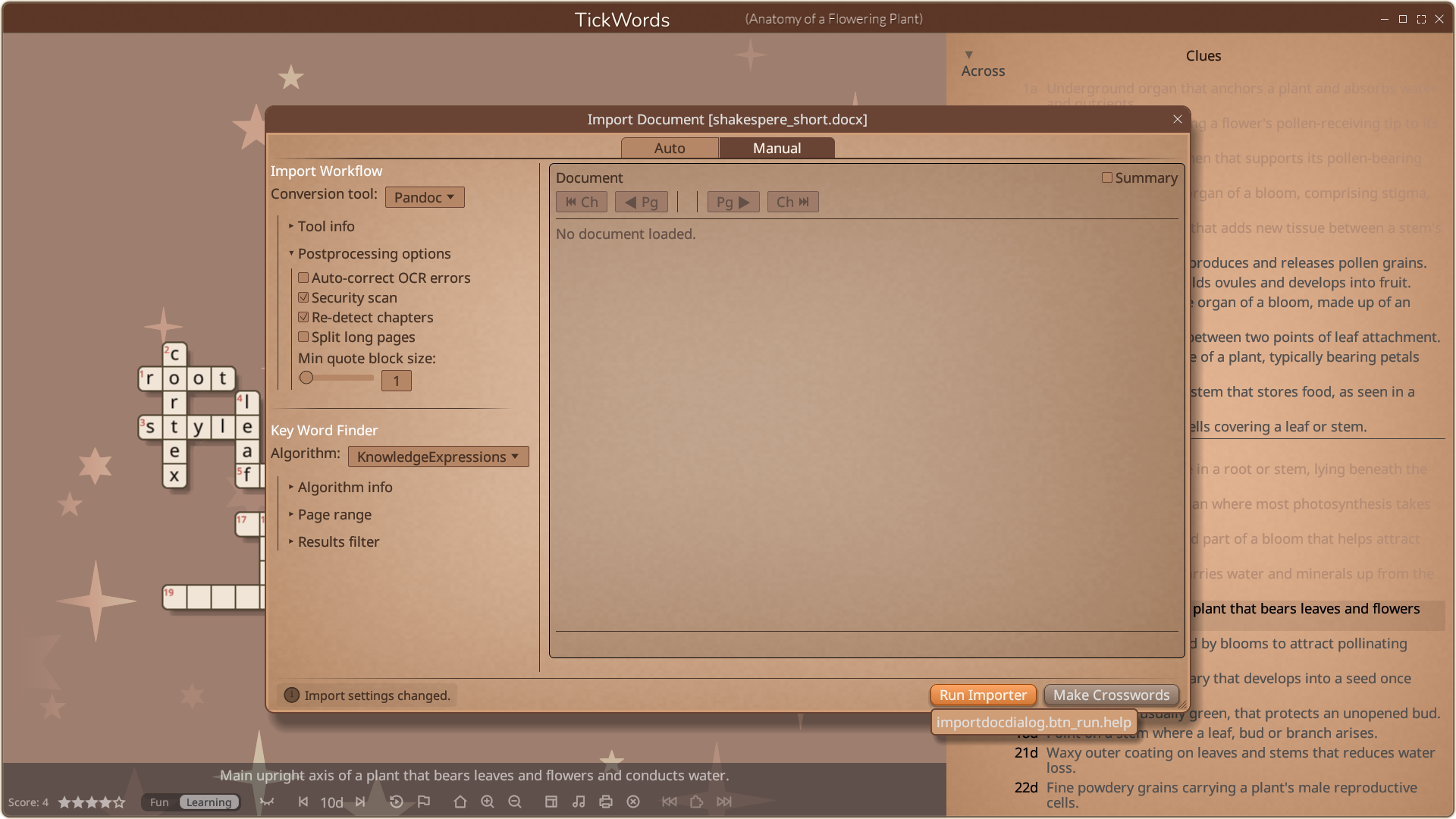
Use manual mode once you are familiar with the software, or really like playing with settings. All settings have an explanation if you hover the mouse over them.
Page range can be a useful option if you have a large ebook or notes and want to focus on a certain section.
After selecting a book and settings, press the Run Importer button.
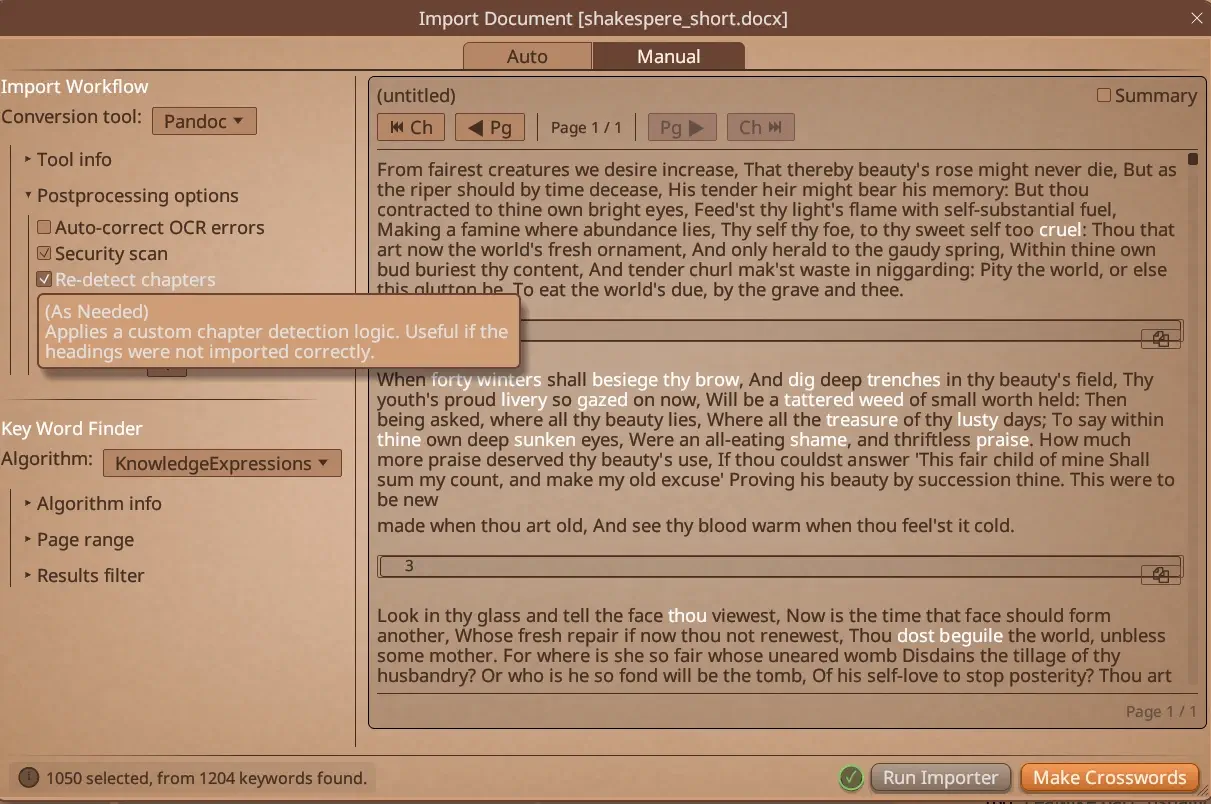
The imported document is shown with the found keywords highlighted. Settings can be further adjusted, and the importer re-run, before pressing Make Crosswords.
After importing a book, your clues are loaded into a table.
There is a separate tutorial for this table, but if you want to skip curating your words and get on with playing crosswords, just hit “Build Everything”, then “Save and Play”.
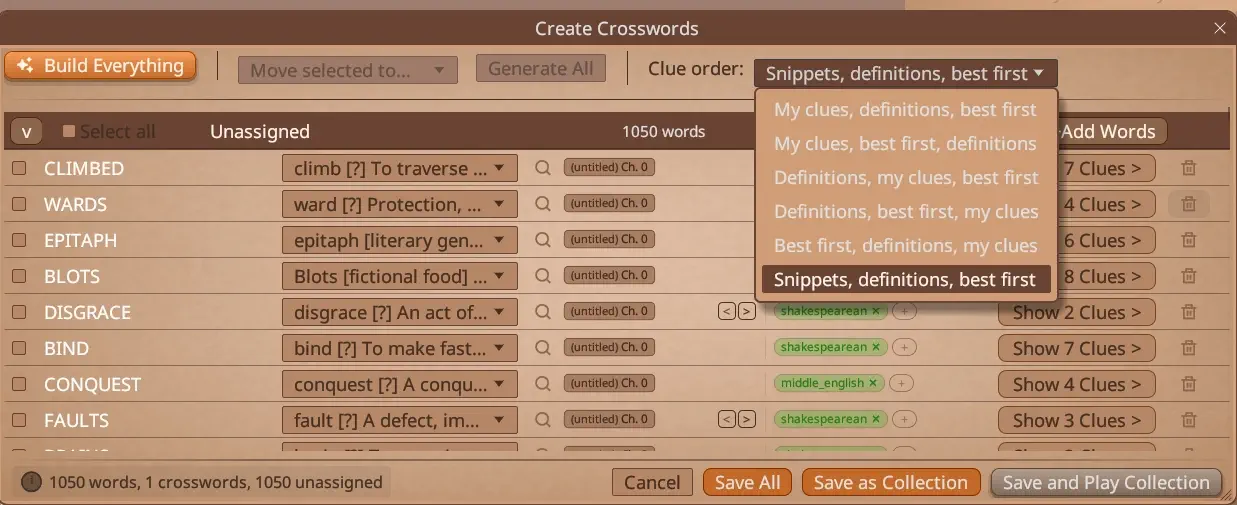
Revision crosswords rebuild puzzles from words you have already met, so you can practise the ones that did not stick. They draw on your play history, so play a few crosswords first.
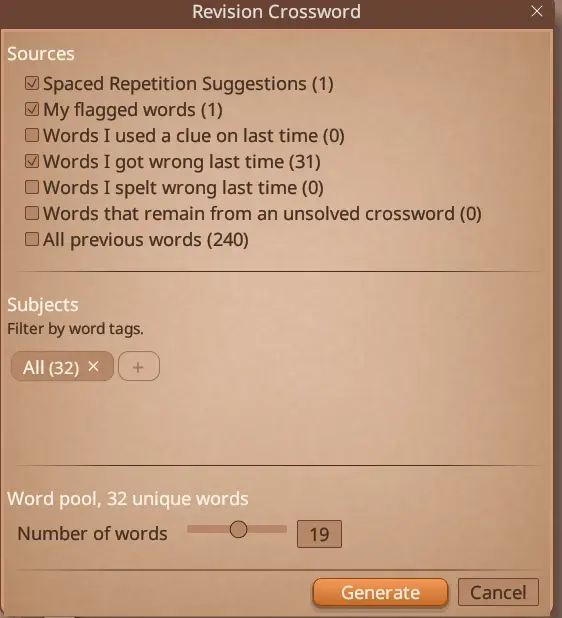
Revision Crossword (Automatic) is the easiest to use. Tick the sources to draw words from: spaced repetition suggestions, words you flagged, words you got wrong or spelt wrong last time, words left over from unsolved crosswords, or everything you have played.
The subjects filter narrows the pool by word tags, and the slider sets the number of words. Press Generate when ready.
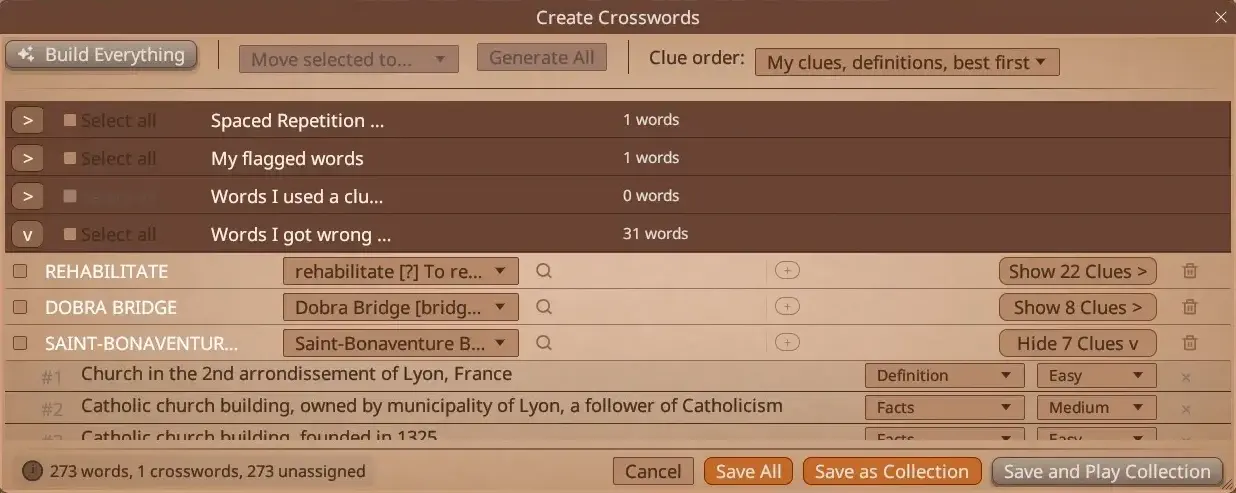
Revision Crossword (Custom) uses the Crossword Table Dialog. The words are grouped by source, and you select exactly which words and clues you would like included before building and saving.
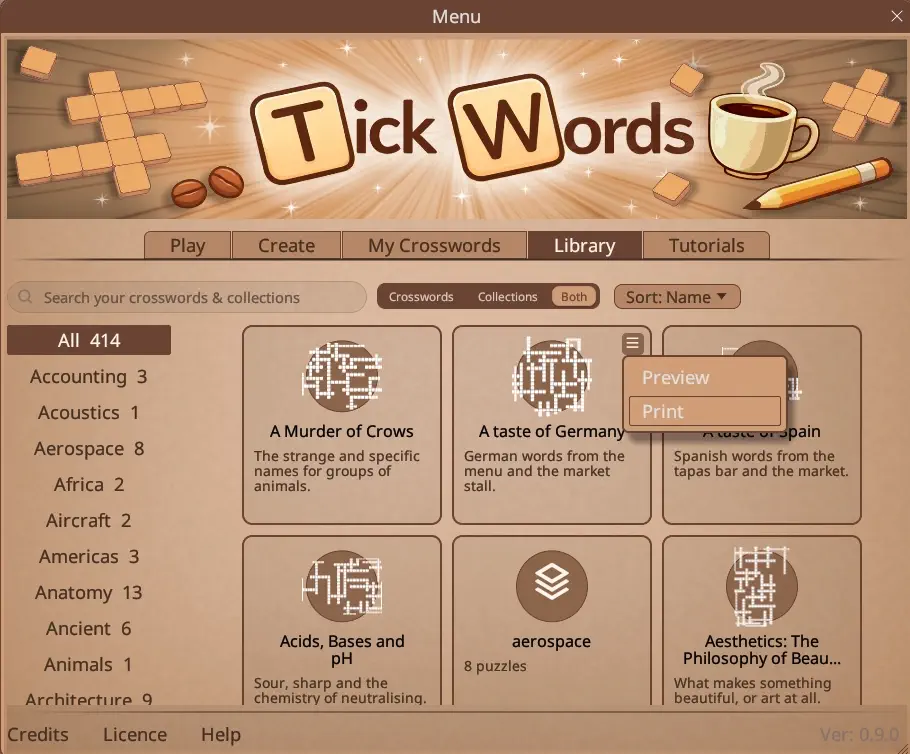
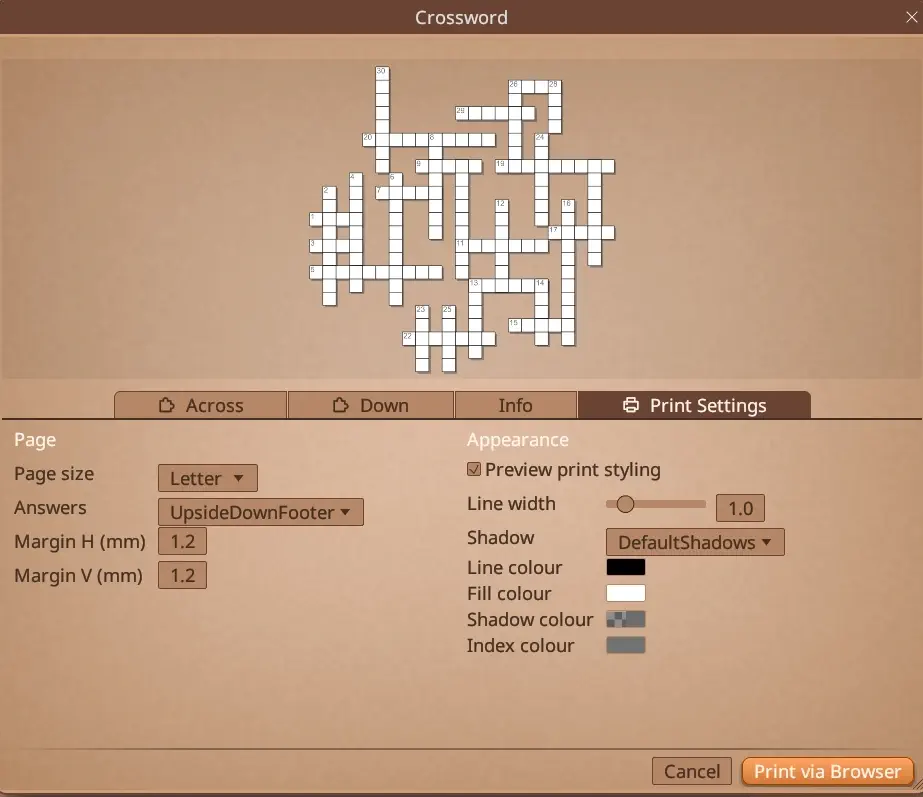
Any crossword can be printed as a black and white puzzle. Open the menu in the corner of its card and choose Print.
The Print Settings tab sets the page size, the margins, where the answers are placed, and the line styling. Print via Browser then hands the page to your web browser, which does the actual printing.
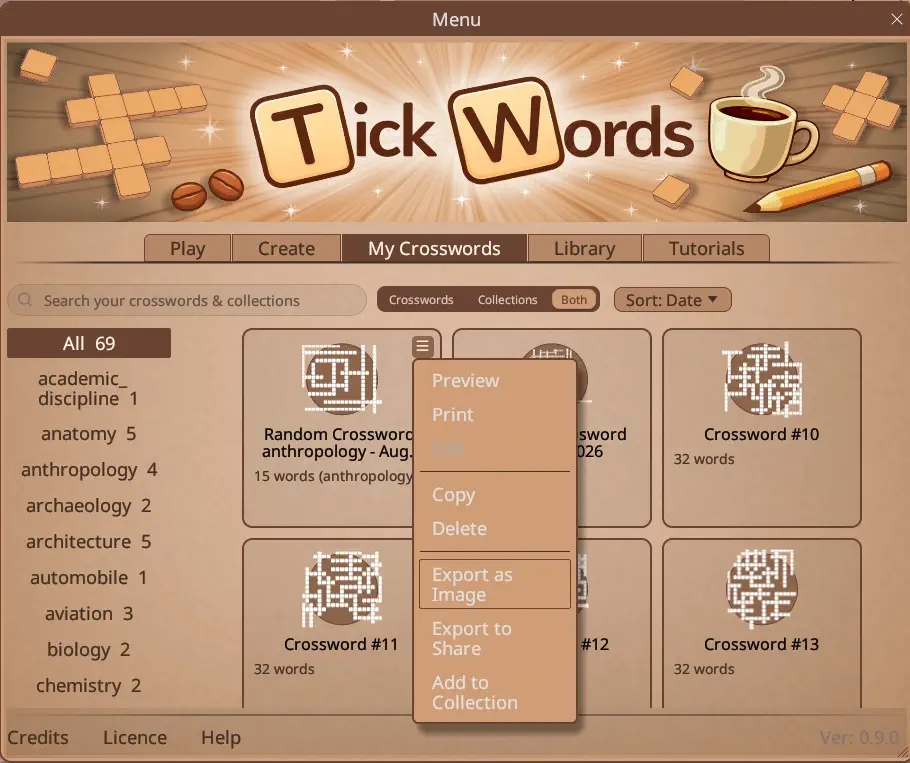
Crosswords you have created yourself can also be exported as full colour images. On the My Crosswords tab, open the card menu and choose Export as Image.
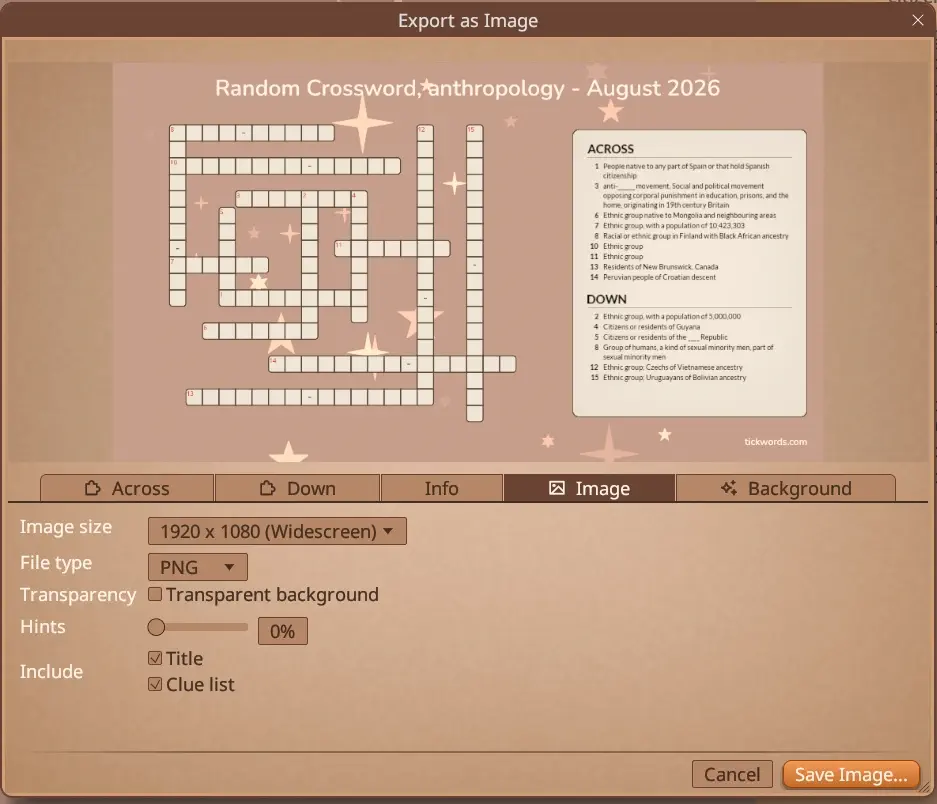
Choose the image size and the file type (PNG, WebP or JPG). You can reveal a percentage of the letters as hints, include the title and clue list, and pick the backdrop on the Background tab. Save Image writes the file.
Export to Share, in the same card menu, saves the crossword itself as a TickWords file you can send to another player.
Still stuck
Answers to the questions that come up most, plus troubleshooting for graphics and saves.
Browse the FAQAsk the community, or catch us there. It is the fastest way to get an answer.
Join DiscordFound an issue? Tell us what happened and we will get it fixed.
Report a bug